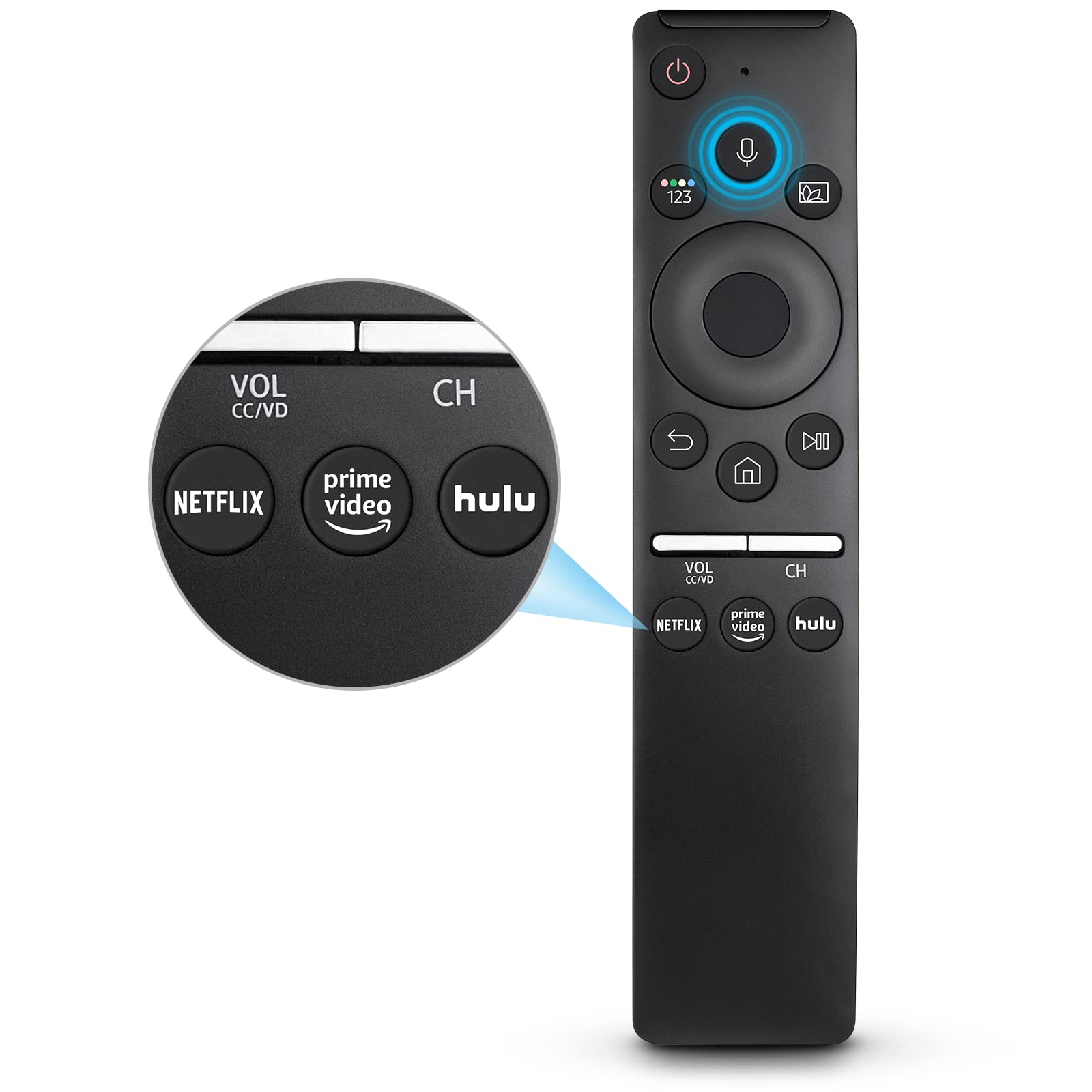
You’re sitting there, popcorn in hand, ready to binge-watch that new series everyone is talking about, and suddenly—nothing. You press the power button. You press it harder. You aim it like a laser at the bottom of the screen. Still nothing. Dealing with a remote control Samsung TV issue is one of those modern-day annoyances that feels way more frustrating than it should. We’ve all been there, frantically rubbing the batteries together like we’re trying to start a fire in the wilderness, hoping for a spark of life.
Honestly, Samsung remotes have changed a lot over the last decade. We went from those chunky, button-heavy monsters of the early 2010s to the sleek, minimalist "OneRemote" and now the eco-friendly SolarCell versions. They look great, but they can be finicky. Sometimes it’s a dead battery, but more often than not, it’s a software desync or a literal piece of dust blocking the infrared (IR) sensor.
The Most Common Reasons Your Remote Control Samsung TV Is Ghosting You
It’s rarely a total hardware failure. Usually, the remote control Samsung TV unit just needs a "handshake" reset. If you’re using the newer Smart Remotes (the ones with very few buttons), they connect via Bluetooth. Bluetooth is great until it isn't. Interference from other devices or a simple firmware glitch in the TV can cause the connection to drop.
Think about your living room. You’ve got a soundbar, maybe a gaming console, a router, and three smartphones all fighting for signal space. It’s crowded.
One weird trick that actually works for the older IR remotes? The "Camera Test." Grab your smartphone, open the camera app, and point the remote's emitter at the lens. Press buttons. If you see a flickering purple or white light on your phone screen, the remote is sending a signal. If you don't, the remote is dead or the batteries are toast. If you do see the light but the TV doesn't react, the problem is the TV's sensor or the pairing software.
The SolarCell Battery Dilemma
Samsung moved to solar-powered remotes to save on millions of AAA batteries. It's a noble goal. But here’s the thing: people keep their living rooms dark. If you leave your remote face down on the coffee table in a dim room for three months, it’s going to die. I’ve seen people assume their remote is broken when it just needs to sit on a sunny windowsill for a few hours.
Or, you can just plug it in. There’s a USB-C port on the bottom. Treating your TV remote like a smartphone and giving it a 30-minute charge can solve 90% of the "broken" complaints I see online.
Pairing and Resetting: The "Secret" Button Combinations
If your remote control Samsung TV is still being stubborn, you likely need to re-pair it. This is the part where most people get stuck because the buttons aren't labeled for this.
For almost every Samsung Smart Remote made since 2016, the magic combo is the Return button and the Play/Pause button. You have to hold them down simultaneously for at least three to five seconds. You’ll see a little graphic pop up on the TV screen saying "Searching for devices."
- Keep the remote within a foot of the TV while doing this.
- Don't let go until it says "Pairing Complete."
- If it fails, unplug the TV from the wall for 60 seconds (the "cold boot") and try again.
It sounds like tech support 101, but power cycling the TV actually clears the cache of the Tizen OS. Samsung TVs are basically giant computers, and like any computer, they get "tired" and need a reboot to recognize peripheral hardware again.
Dealing with the Infrared Sensor Blockage
Sometimes the simplest answer is the right one. Samsung likes to put the IR sensor on the bottom right or the center bottom of the frame. If you have a fancy soundbar sitting directly in front of your TV, you might be physically blocking the signal.
Even a stray holiday decoration or a thick layer of dust can interfere. I once spent twenty minutes troubleshooting a friend's TV only to realize their "Live, Laugh, Love" sign was blocking the receiver. We felt pretty silly after that.
Using Your Phone as a Backup
If your physical remote control Samsung TV is truly dead—maybe the dog chewed it or you spilled coffee on it—don't panic. You don't have to go to the store immediately.
The SmartThings app is Samsung’s official solution. As long as your phone and TV are on the same Wi-Fi network, the app acts as a fully functional remote. It’s actually better for typing in search queries or passwords because you can use your phone’s keyboard instead of clicking through an on-screen alphabet one letter at a time.
There are also third-party "Universal Remote" apps, but honestly, stay away from them. Most are filled with intrusive ads and tracking. Stick to the official SmartThings app or the physical hardware.
What About Universal Remotes?
If you hate the tiny Samsung remote, you can go back to basics. Most "universal" remotes from brands like GE or Logitech (if you can still find one) work perfectly with Samsung. Samsung uses very standard IR codes that haven't changed much in twenty years. This is why an old remote from a 2005 Samsung plasma TV will often still turn on a brand new 2024 QLED.
Actionable Steps to Fix Your Remote Today
If you are staring at a non-responsive screen right now, follow this exact sequence. No shortcuts.
- The Cold Boot: Unplug the TV from the wall. Not just turning it off—unplug it. Wait 60 seconds. Plug it back in.
- The Battery Purge: Take the batteries out of the remote. Hold down the Power button on the remote for 20 seconds to drain any residual electricity. Put fresh batteries in (or charge the SolarCell via USB-C).
- The Re-Pair: Point the remote at the TV sensor. Hold Return and Play/Pause together. Wait for the screen to acknowledge the connection.
- The Sensor Check: Ensure no soundbars, decorations, or dust are obscuring the bottom edge of the TV.
- The Update: Once you get it working, go to Settings > Support > Software Update. Sometimes a buggy TV firmware prevents the remote from staying connected.
If none of that works, the internal Bluetooth module in the TV might be fried, or the remote hardware itself has a hardware failure. In that case, replacing the remote is relatively cheap. You can find OEM replacements online easily. Just make sure the model number on the back of your TV matches the compatibility list.
Stop fighting with the buttons. If a 10-second hold doesn't fix it, it's time to check the app or the power cord. Most of the time, the fix is simpler than you think.


